
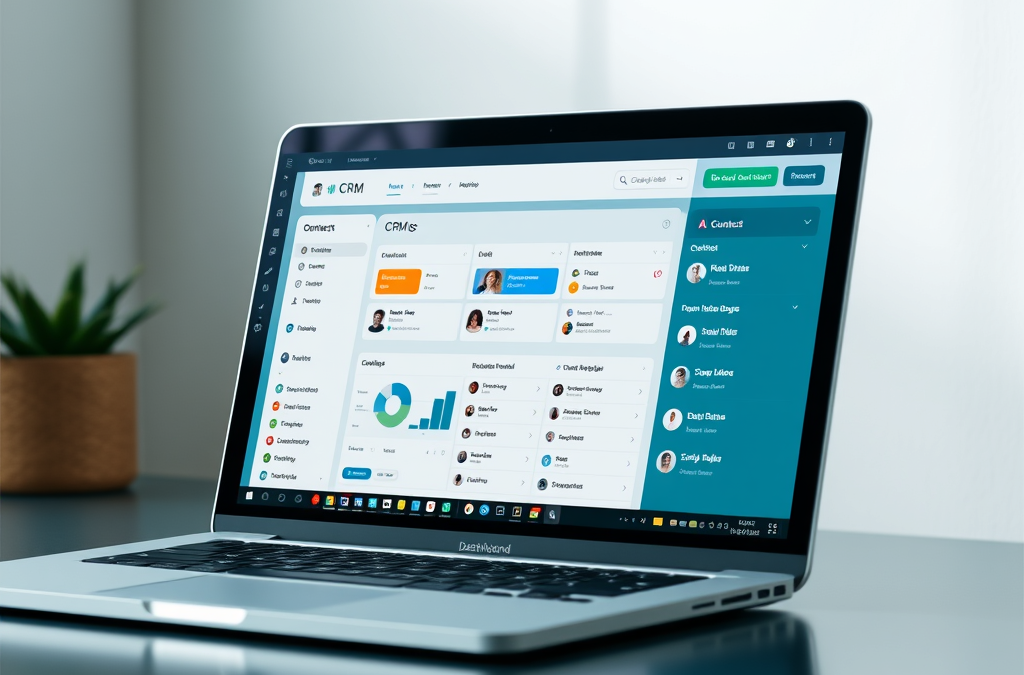
# Build a CRM WithoutCoding: A Live Demo Guide
**Summary** – You can build a fully functional CRM without writing a single line of code. This guide shows a live demo of the steps, tools, and best practices you need. Learn how to design contacts, track deals, automate tasks, and launch your CRM fast, all using no‑code platforms that anyone can use.
—
## Introduction – Why Build a CRM Without Coding? Customer relationship management, or CRM, helps businesses keep track of leads, deals, and contacts. Traditionally, building a CRM required developers, servers, and months of work. Today, no‑code tools let you build a CRM in hours. This article walks you through a live demo of building a CRM without coding. You will see each step in plain language and get tips to make the process smooth.
## What Is a CRM and Why Does It Matter?
A CRM stores all customer information in one place. It lets you:
– See every contact’s history at a glance.
– Track sales pipelines and forecast revenue.
– Automate follow‑ups and reminders.
– Generate reports that show performance.
When a CRM works well, teams spend less time searching for data and more time selling.
## The Rise of No‑Code Platforms
No‑code platforms are visual builders. They let you drag and drop elements to create apps. Popular options include:
– **Glide** – turns Google Sheets into mobile apps.
– **Bubble** – designs web apps with complex logic.
– **Airtable** – combines spreadsheets and databases.
– **Adalo** – creates mobile apps with minimal effort. These tools handle hosting, security, and integrations automatically. You focus on design, not code.
## Live Demo Overview – The Demo CRM Blueprint
Our demo CRM will include:
1. Contact database
2. Deal pipeline tracking
3. Task automation for follow‑ups
4. Simple reporting dashboard
We will use Glide because it connects directly to Google Sheets and requires no setup. The demo showcases a real‑time interface that you can share with a team instantly.
## Step 1 – Set Up Your Data Source ### Create a Google Sheet
1. Open Google Sheets.
2. Create three tabs: **Contacts**, **Deals**, **Tasks**.
3. In **Contacts**, add columns: *Name, Email, Phone, Company, Stage*.
4. In **Deals**, add: *Deal Name, Contact, Value, Stage, Close Date*. 5. In **Tasks**, add: *Task, Owner, Due Date, Status*. ### Populate Sample Data
Add 5–10 rows of realistic data. This step gives you a working dataset to test the CRM.
## Step 2 – Connect the Sheet to Glide
1. Go to Glide (glideapps.com) and sign up.
2. Click **New App** and choose **Google Sheets** as the data source.
3. Select the spreadsheet you just created.
4. Glide will automatically import each tab as a separate data source.
### Map Columns to Fields
– In the **Contacts** screen, map *Name* to a text component, *Email* to an email field, and so on.
– Repeat for **Deals** and **Tasks**.
Glide now knows how to read and display your data.
## Step 3 – Build the Main Screens
### Contact List Screen
1. Add a **List** component that pulls from the **Contacts** data source.
2. Include columns for *Name*, *Email*, and *Company*.
3. Enable **Search** so users can find contacts quickly.
### Deal Pipeline Screen
1. Add a **Board** component that uses the **Deals** data source.
2. Set the stage column as the board’s status field.
3. Drag cards to move deals between stages (e.g., *Lead*, *Proposal*, *Closed*).
### Task Management Screen
1. Add a **Table** component for the **Tasks** data source.
2. Show *Task*, *Owner*, and *Due Date*.
3. Add a **Button** that marks a task as *Done*.
## Step 4 – Add Automation – Follow‑Up Emails
### Use Glide’s Action Builder
1. Select the **Tasks** table.
2. Add a **Send Email** action.
3. Map the *Contact Email* field to the **To** field of the email.
4. Use the *Task* column as the email body.
5. Set the trigger to **When a task is marked Done**.
Now, every time a team member marks a task complete, the CRM automatically sends a follow‑up email to the associated contact.
## Step 5 – Create a Dashboard Overview
1. Add a **Chart** component that counts deals by stage.
2. Add a **Text** component that displays the total number of active contacts.
3. Arrange these components on a **Home** screen.
The dashboard gives a quick snapshot of sales performance without leaving the app.
## Step 6 – Share and Test the Live Demo
1. Click **Publish** in Glide and choose **Web Link**.
2. Copy the generated URL.
3. Open the link on a phone or computer.
4. Test each screen: add a new contact, move a deal across stages, complete a task.
Invite team members to the URL. They can use the CRM instantly, no installation required.
## Design Tips for a Clean, Usable CRM – **Keep navigation simple.** Use a bottom tab bar with only three icons: Home, Contacts, Deals.
– **Use consistent colors.** Choose a palette that matches your brand.
– **Limit fields on entry screens.** Ask for only essential information at first.
– **Add tooltips.** Explain each field with a small question mark icon.
– **Test with real users.** Get feedback early and adjust layout accordingly.
## Integration Options – Connecting to Other Tools
Even without code, you can link your CRM to other apps:
– **Zapier** – Triggers actions in Gmail, Slack, or Google Calendar when a deal moves to a new stage.
– **Make (formerly Integromat)** – Build multi‑step workflows that update contact tags based on email opens. – **API connectors** – Many no‑code platforms let you pull data from external services directly.
Use these integrations to avoid double‑entry and keep all data synchronized.
## Security and Data Management
### Permissions
– In Glide, set **Roles** (Admin, Member, Viewer). – Grant edit rights only to trusted team members.
### Backup
– Periodically export your Google Sheet.
– Store the backup in a secure cloud folder.
### Privacy
– Include a **Privacy Notice** in the app footer.
– Do not store highly sensitive data (e.g., credit card numbers) in a sheet; use a dedicated secure service instead.
## Cost Considerations
| Platform | Free Tier | Paid Tier (Monthly) | Typical Use Cases |
|———-|———–|———————|——————-|
| Glide | Up to 500 rows, basic features | $35+ for premium features | Small teams, prototypes |
| Bubble | Limited apps | $29+ for full functionality | Complex workflows |
| Airtable | 1,200 records | $12+ for larger bases | Mixed data types |
| Adalo | 50+ components | $50+ for advanced features | Mobile‑first apps |
Start with the free tier. Upgrade only when you need more rows or custom branding.
## Common Pitfalls and How to Avoid Them
– **Over‑complicating the data model.** Begin with a simple spreadsheet and expand only when necessary. – **Ignoring user feedback.** Conduct short usability tests after each screen is built.
– **Neglecting mobile responsiveness.** Test every screen on a phone before publishing.
– **Skipping regular backups.** Schedule a weekly export to avoid data loss.
## Scaling Your No‑Code CRM as You Grow
When your team expands:
– Add new columns for **Lead Source**, **Customer Lifetime Value**, or **Support Tickets**. – Split large sheets into multiple tabs to keep performance fast.
– Consider moving to a platform that supports relational databases (e.g., Airtable).
– Explore advanced automation with **Zapier** or **Make** for multi‑step workflows.
## Real‑World Example – A Startup’s Live Demo Journey
A SaaS startup wanted a lightweight CRM for its sales team. They used Glide to connect a Google Sheet with 200 contacts. Within two days they had: – A contact list with search and add‑new‑contact button.
– A deal board that displayed stages in Kanban style. – An automated email trigger that sent proposals after a deal moved to *Proposal* stage.
The startup closed 15 % more deals in the first month because the team could see the pipeline at a glance and follow up timely.
## Frequently Asked Questions ### Is it really possible to build a CRM without any coding?
Yes. No‑code platforms let you create databases, screens, and automations using visual editors. No programming knowledge is required.
### Which no‑code tool is best for beginners?
Glide is often recommended for beginners because it links directly to Google Sheets and produces mobile‑friendly apps instantly.
### How long does it take to launch a basic CRM?
Most beginners can set up a functional CRM in a single afternoon, especially if the data source is already organized.
### Do I need a developer to integrate my CRM with email or calendar tools? No. Tools like Zapier or native integrations in Glide allow you to trigger actions without writing code.
### Can I host the CRM on my own server?
Most no‑code platforms host the app for you. If you need on‑premise hosting, you would need a custom solution, which usually involves coding.
### Is my data safe in a no‑code app?
Data safety depends on the platform’s security practices. Use role‑based permissions, enable two‑factor authentication, and keep backups of your source sheets.
### How do I add custom fields later?
Simply add new columns to your Google Sheet. The app will refresh and display the new fields automatically.
### Can multiple team members edit the CRM at the same time?
Yes. No‑code platforms handle concurrent edits, but it’s best to define who can edit which screens to avoid conflicts.
### What happens if I exceed the free tier limits?
You will need to upgrade to a paid plan, which usually unlocks more rows, custom branding, and advanced features.
### Is a no‑code CRM suitable for large enterprises?
It can work for small to medium teams. Large enterprises often need deeper customization and may eventually move to a coded solution.
### How do I measure the success of my CRM?
Track metrics like **lead conversion rate**, **average deal size**, and **follow‑up response time**. Most platforms let you build simple charts to visualize these numbers.
—
## Conclusion
You now have a complete roadmap to **build crm without coding** using a live demo approach. By following the steps above, you can create a functional CRM in hours, automate follow‑ups, and share it instantly with your team. Start with a simple Google Sheet, connect it to a no‑code platform, and iterate based on user feedback. The result is a powerful, low‑cost system that grows with your business. Happy building!